
Change text in image with one sentence
The quickest way to change text in image files: upload a picture, quote the words that are there now and the words you want instead. MiniMax H3 Image rewrites them in the same lettering and leaves the rest where it was.
In <Picture 1>, change the title "THE CORNER CUP" to "THE CORNER CAFE", in the same white chalk lettering, size and position. Keep every other word, number and doodle on the board, the brick wall and the light exactly as they are. No other text.
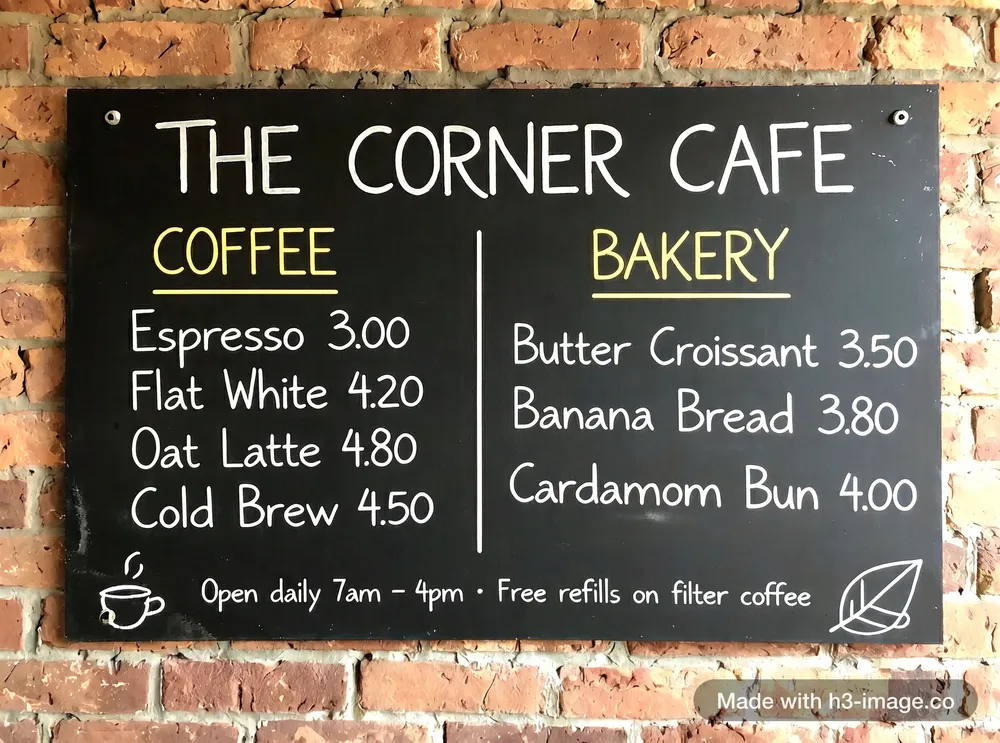
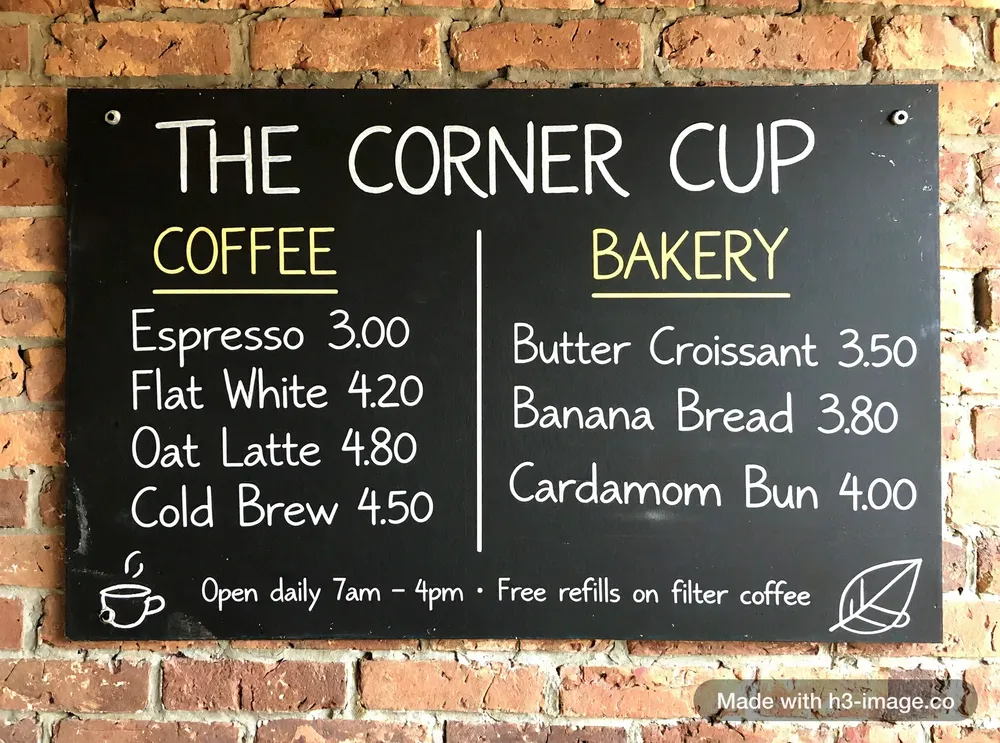 BeforeOne word changed
Change text in image: try it on your own picture
The editor is in Edit image mode, ready to change text in image. Add your picture, or start from an example below.
New accounts get 20 free credits · See pricing
Not affiliated with MiniMax · Your images are never used to train AI · Privacy policy
How to change text in image, step by step
To change text in image here you don't draw a box around the words or hunt for the font. You name the old text and the new text, and the model does the lettering.
- 1
Upload the picture
Open Edit image and add your file: JPG, PNG, WEBP or HEIC, up to 10 MB. It becomes <Picture 1> in your prompt. A sharp picture works best.
- 2
Quote the old text and the new text
Write both in double quotes, spelled exactly: change "SALE 20%" to "SALE 30%". Quoting the old words tells the model which text you mean when the picture has several lines.
- 3
Say what must stay
Add "in the same font, colour, size and position" and "keep everything else exactly as it is". Turn Add detail off so your quoted words are not rephrased, then click Generate.
- 4
Compare and download
Read the new words letter by letter and look over the lines you did not touch. If it is right, download the PNG or JPEG. If one letter is off, run the same prompt again.
Prompts to change text in image
Every prompt follows one pattern: which text, what it becomes, how it should look, what stays. Copy one, put your own words between the quotes, and load it into the editor.
In <Picture 1>, change "old text" to "new text", in the same font, colour, size and position. Keep everything else exactly as it is. No other text.
Change one word
For a headline, a name or a button label. Quote the whole phrase, not just the word, so the model finds the right place.
In <Picture 1>, change the headline "SUMMER SALE" to "WINTER SALE", in the same font, colour, size and position. Keep everything else exactly as it is. No other text.
Change a price or a date
Numbers are short, so they are the easiest edit. Quote the full line with its label so only that one changes.
In <Picture 1>, change the line "Saturday, October 25" to "Friday, November 14", in the same font, colour and size. Keep every other line and the layout exactly as they are. No other text.
Fix a typo
Quote the word as it is misspelled in the picture, then the correct spelling. This also repairs garbled text in an AI image.
In <Picture 1>, the sign says "Resturant". Change it to "Restaurant", in the same lettering, colour and size. Keep everything else exactly as it is. No other text.
Translate a line
Write the translation yourself and quote it; the model writes what you type. A longer translation may be set a little smaller.
In <Picture 1>, change the text "OPEN" on the door sign to "ABIERTO", in the same style and colour, centred in the same place. Keep everything else exactly as it is. No other text.
These four are templates to adapt. The sentence beside the menu at the top of the page is the exact prompt that made that edit.
Replace text in image: prices, dates, names and whole lines
To replace text in image is the same job as to change text in image, with more letters. Six places where people use it, and what to expect.
Menus and price lists
Replace a price or swap a dish without redoing the whole menu. Change one line per run: it is easier to check than five at once.
Posters and flyers
Move an event to a new date, a new venue or a new headline act. Display lettering in a strong style is usually matched closely.
Product labels and packaging
Try a new flavour name, weight or tagline on a pack shot before you print. Use 2K or 4K so the small print is readable.
Signs and shopfronts
Put a new name on a shop sign to preview a rebrand, or correct a sign in a photo you can't take again.
Social graphics and thumbnails
Reuse one design for a series by replacing the title each time. The background and the layout stay the same from post to post.
AI images with wrong words
One word came out misspelled in a picture you like? Upload it and replace only that text, without rolling the dice on the whole image again.
Tips to change text in image and keep the rest
- Quote both texts exactly
- Capital letters, accents and punctuation are copied as you type them. "Cafe" and "CAFÉ" are two different requests.
- Change one thing per run
- One line at a time is the most reliable way to change text in image. For three lines, make three edits, each starting from the last result.
- Keep the new text a similar length
- Three letters to four fits easily, as in the menu above. A sentence in place of one word forces the layout to move.
- Turn Add detail off
- With it on, your prompt is rewritten before the run and quoted words can change. Off, they are used exactly as written.
- Use 2K or 4K for small print
- Small letters need pixels. If the text is tiny in your picture, crop to the part that has it and edit the crop.
What stays the same
The model makes a new picture from yours instead of painting over a patch. In the menu edit the board, every untouched line, the doodles and the wall kept their place, while brick texture shifted slightly. When you change text in image this way, layout and wording hold, and the finest grain may differ.
What this tool does not do
There is no text box to click and type into, and no font menu: you describe the change in words. Long paragraphs and very small print can come back with a wrong letter, so read the result. It must not be used to alter IDs, receipts, certificates or other documents.