


20% offBlack Friday11d 03:20:23 left

Remove background from any image

Upload a photo, click Remove background, and the subject comes back on a transparent background in about 15 seconds. It costs 1 credit and you don't write a prompt.

The same woman cut out on a transparent background, hair edges keptA smiling woman in a knit sweater in a caféOriginalBackground removed
This ran on our site for 1 credit and took about 15 seconds. Drag the handle and look at the hair. The “Made with h3-image.co” tag is only on our samples; your downloads have no watermark.

No prompt needed. You can also drop or paste an image anywhere on the page. JPG, PNG or WEBP, up to 5 MB, 256 to 4096 px a side.

1 credit per image, as low as $0.02 (Studio Yearly) · failed runs are refunded · See pricing

How to remove background from an image

You don't draw a selection and you don't write a prompt. The model picks the subject and removes the background around it.

  1. 1

    Upload your picture

    Click Upload an image, drop a file anywhere on the page or paste a screenshot. JPG, PNG and WEBP work, up to 5 MB and 256 to 4096 pixels a side.

  2. 2

    Check it in the canvas

    Your picture replaces the sample on the right, so you can make sure it is the right one before anything is charged.

  3. 3

    Click Remove background

    One credit is taken and the model starts. A timer shows how long it has been running; most pictures come back in about 15 seconds.

  4. 4

    Download the transparent PNG

    Save it as PNG or WEBP, the same size as your original. A copy also goes to My creations, so closing the tab doesn't lose it.

Made with H3 Image, then cut out here

The poster on the left was made with MiniMax H3 Image on this site. The cutout on the right needed no prompt: the poster was simply uploaded here and came back for one credit.

An ad poster with a headline

The beige backdrop, the soft shadow and the printed headline all went; only the speaker came back.
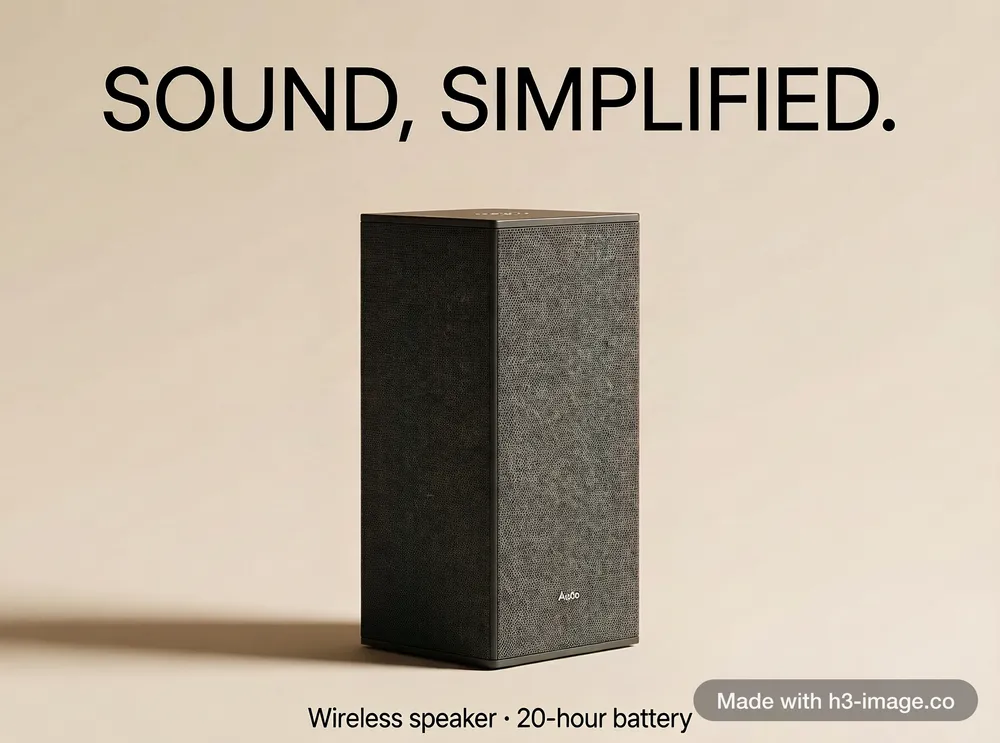
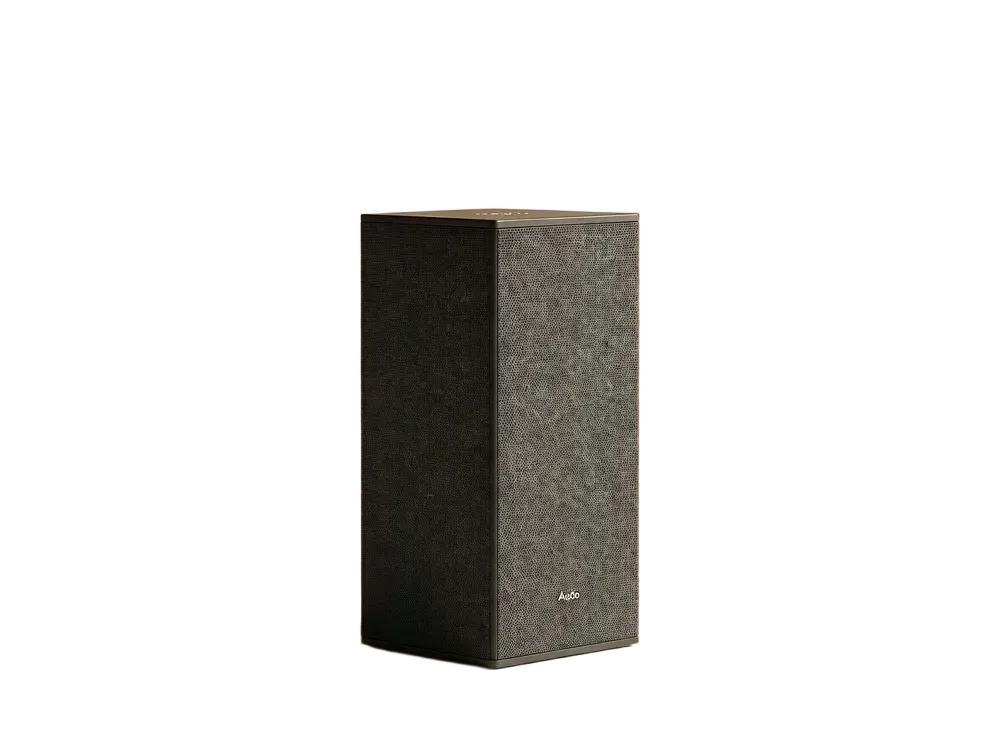
A speaker poster with the headline “SOUND, SIMPLIFIED.” on a beige background
Made with H3 Image
The speaker alone on a transparent background, headline removed
Background removed here
How the left picture was made

This prompt only made the poster with H3 Image (Edit Image, with a speaker photo as <Picture 1>). Removing the background needs no prompt.

Minimal advertising poster featuring the speaker from <Picture 1> centred on a warm beige background with a soft shadow. Headline at the top in large clean letters: "SOUND, SIMPLIFIED." Small line at the bottom: "Wireless speaker · 20-hour battery". Keep the speaker exactly the same.

See it with its reference photo

Remove background from product photos, portraits and more

Six jobs where it pays to remove background first, and what to expect from each one.

  • Product photos

    Remove background from a product shot taken on a table or a shelf, then place it on white for a marketplace listing or on your brand colour for an ad. A product standing on its own gives the cleanest edge; props touching it may be kept with it.

  • Portraits and profile pictures

    Lift a person out of a busy room for an avatar or a team page. Hair on a plain or blurred background comes out strand by strand (the sample at the top of this page is one).

  • Stickers and game assets

    Turn characters and item art into transparent pieces for a game or a sticker pack. If you make the art with H3 Image, ask for a plain background, then remove background here.

  • Slides, posters and thumbnails

    Put a cutout on a slide or a video thumbnail and there is no white box around it. You can move it over any colour or photo.

  • Social posts

    Put one product on four different backgrounds for a carousel, without shooting it four times.

  • New scenes with H3 Image

    Use the cutout as a reference picture in H3 Image's Edit mode and describe a new scene around it. The subject stays as it is.

Tips to remove background cleanly

Keep one clear subject
The model keeps whatever reads as the main subject. A product on a stand next to a vase may come back as one still life with all three. Crop to the part you want first.
Give it some contrast
A dark product on a light wall, or the other way round, gives a sharper edge than black on black or white on white.
Use a sharp photo
Blurry edges stay blurry. A sharp original works better than a small screenshot of it.
Stay inside the limits
Pictures must be 256 to 4096 pixels a side, at most 16 megapixels and 5 MB. Shrink a very large photo before you upload it.
Compare before you download
Click Show original to flip between the two versions. Fine detail, like hair or glass, is where problems show up first.

PNG or WEBP?

Both keep the transparent background at the size of your original. Pick PNG for design tools, slides, marketplaces and anything that may not open WEBP. Pick WEBP when the cutout goes on a website: the file is usually smaller for the same picture.

What this tool does not do yet

It works on one picture at a time; there is no batch upload. There is no brush to keep or erase areas by hand, and it does not put a new colour or scene behind the subject for you. For a new scene, take the cutout into H3 Image's Edit mode.

Remove background FAQ

You can try it free: new accounts get 20 credits when you sign up. After that each picture costs 1 credit, from a subscription or a one-time credit pack. If a run fails, the credit is refunded automatically.